
TL;DR:
- Connection errors often result from incorrect game versions, server downtime, or network restrictions.
- Different Minecraft editions have distinct server support and joining methods, requiring proper setup.
- Finding a suitable, well-moderated server enhances long-term enjoyment and community engagement.
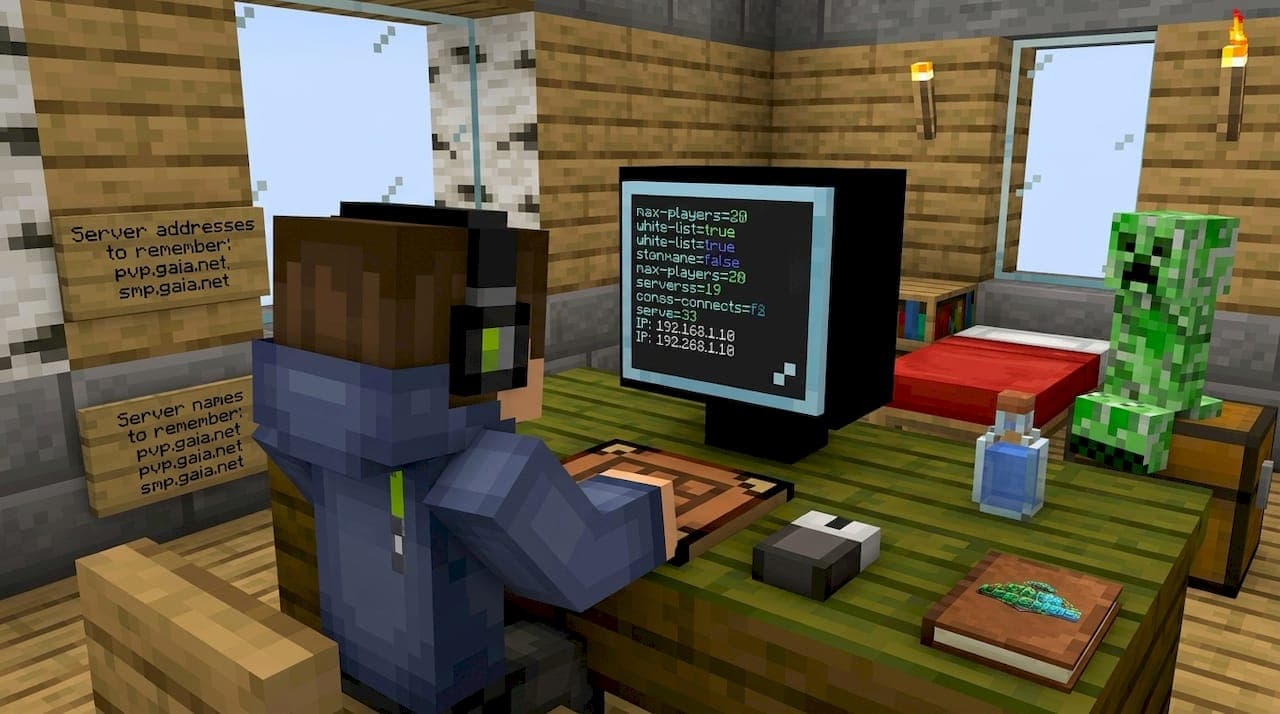
You finally found a server that looks perfect, you fire up Minecraft, and then it happens: the dreaded "Connection Refused" error stares back at you. It is one of the most common and frustrating moments in multiplayer Minecraft, and it stops a lot of players before they ever experience the thrill of building alongside hundreds of others. Whether you are playing Java Edition on PC, jumping in on Bedrock via console, or setting up a session in Education Edition, this guide walks you through every step you need to connect successfully. We also cover troubleshooting, pro tips, and platform-specific quirks so nothing catches you off guard.
Table of Contents
- What you need before joining a Minecraft server
- Step-by-step: How to join Minecraft servers on different platforms
- Troubleshooting: Common problems and solutions when joining
- Expert tips for a smooth multiplayer experience
- Our take: Why joining the right server matters more than you think
- Ready to join more great servers? Explore top Minecraft guides
- Frequently asked questions
Key Takeaways
| Point | Details |
|---|---|
| Get prerequisites right | Double-check your game version, internet, and server details before joining for a smooth experience. |
| Follow the right steps | Each platform—Java, Bedrock, and Education—has specific instructions you should use. |
| Solve errors quickly | Troubleshoot join problems by checking versions, network settings, and any whitelist requirements. |
| Optimize your experience | Use expert tips on mods and performance to enjoy stable, fun multiplayer sessions. |
What you need before joining a Minecraft server
Once you understand what makes joining a server confusing, let's gather and prepare everything you need. Getting the foundation right saves you a lot of headaches later. Think of it like gearing up before a dungeon run: you want the right tools equipped before you step through the portal.
Know your edition
Minecraft is not one single game. It runs as several distinct editions, and each one has its own server ecosystem.
| Edition | Platforms | Server type supported |
|---|---|---|
| Java Edition | Windows, macOS, Linux | Java servers (port 25565 default) |
| Bedrock Edition | Windows 10/11, iOS, Android, Xbox, PlayStation, Switch | Bedrock servers, Realms |
| Education Edition | Windows, macOS, iPad, Chromebook | Classroom sessions with join codes |
The edition you own determines which servers you can access. Java and Bedrock are not cross-compatible at the server level, so you cannot join a Java server from a Bedrock client. Always confirm your edition before you search for servers.
Account and version setup
You need a valid Microsoft account for Bedrock and Education, or a Mojang/Microsoft account migration for Java. Make sure your account is fully set up and logged into the launcher before attempting any connection. As version mismatch requires matching client and server version, whitelists need approval, and firewalls or unstable internet block connections, this is one of the most overlooked preparation steps.
Always match your client version to the server version. If a server runs on version 1.21.4 and you are on 1.21.1, you will be blocked. You can switch versions inside the Minecraft Launcher under "Installations." Create a new installation with the correct version and save it so you can toggle between them easily.
Network and hardware requirements
Your internet connection matters more than most players realize. A stable connection with low ping (under 100ms ideally) keeps your gameplay smooth. Unstable Wi-Fi is a common culprit for disconnects on larger servers. We always recommend a wired Ethernet connection when possible for any serious multiplayer session.

Some networks, particularly school or office Wi-Fi, block the ports that Minecraft uses. Java Edition uses TCP port 25565 by default. If that port is blocked by a firewall or router setting, your connection will fail silently. Check with your network administrator or try connecting on a mobile hotspot to confirm the issue.
Here is what you need ready before joining any server:
- Minecraft account: Active and logged in on the correct launcher
- Correct game version: Matching the server's required version
- Stable internet: Wired preferred; confirm ports are open
- Server address: The IP address or domain name (e.g., mc.hypixel.net)
- Whitelist approval: Some private servers require prior approval before you can join
- Server port: Usually 25565 for Java; some servers use custom ports
Pro Tip: Bookmark the official server lists from the Minecraft Wiki and supplement them with trusted community resources when finding Minecraft survival servers you actually enjoy. Not all servers appear on official lists, and some of the best communities operate through Discord invites or dedicated websites.
Statistic callout: Servers can technically host thousands of players simultaneously depending on their hardware, but most community servers cap between 50 and 500 players to maintain healthy TPS (ticks per second). A healthy server runs at 20 TPS. Below 15 TPS and you will start noticing rubber-banding and lag.
Step-by-step: How to join Minecraft servers on different platforms
Now that you're ready, let's break down how to join servers on every Minecraft platform. The steps differ slightly depending on which edition you use, so find your platform below and follow along.
Java Edition (PC)
To join a Java server, launch the game, select Multiplayer, click Add Server or Direct Connect, enter the server name and address (IP or domain like mc.hypixel.net, port 25565 if specified), then join.
Here is the full step sequence:
- Open the Minecraft Launcher and launch Java Edition with the correct version installed.
- From the main menu, click Multiplayer.
- Click Add Server to save the server for future use, or Direct Connect to join once without saving.
- Enter a name for the server (any name you choose for your own reference).
- Type the server address in the "Server Address" field. This could be an IP like 192.168.1.1 or a domain like mc.hypixel.net.
- If the server uses a non-default port, add a colon after the address followed by the port number (e.g., play.example.com:19132).
- Click Done to save, then select the server from the list and click Join Server.
The server will appear with a ping indicator and player count once it loads. A green bar means healthy connection. A red X means the server is offline or unreachable.
Bedrock Edition (Windows, mobile, Xbox, PlayStation, Switch)
Bedrock Edition on console platforms has some extra steps compared to PC. Console users can access featured servers directly, but adding custom servers requires a workaround via DNS settings on some platforms.
For Bedrock on Windows or mobile:
- Open Minecraft and go to Play.
- Select the Servers tab.
- Scroll past the featured servers list and click Add Server.
- Enter the server name, address, and port (Bedrock default port is 19132).
- Click Save, then select the server and tap Join Server.
For Bedrock on Xbox or PlayStation: Console editions restrict custom server additions more tightly. Many players use a DNS workaround to access third-party servers by redirecting one of the featured server addresses to their desired server IP. This method works but requires router or console DNS configuration, which varies by device.
Realms offer the simplest entry point on any Bedrock platform. The host shares a Realms invite link, you accept it, and the Realm appears in your server list automatically.
Pro Tip: If you run a thriving Minecraft community server, consider offering a Realm option for Bedrock players to lower the barrier to entry for console users.
Minecraft Education Edition
Education Edition multiplayer uses picture-based join codes for connecting with others in the same Microsoft 365 organization, supports a maximum of 40 players, and requires the host to stay online for the session to remain active.
The host starts a world and shares a unique picture-based join code with participants. Students or players enter that code from the Play menu to join. Everyone must be signed into the same Microsoft 365 organization. This is a much more controlled environment than Java or Bedrock, and it is intentionally designed for classroom use. See our Education Edition multiplayer guide for the full setup walkthrough.
Platform comparison table
| Platform | Custom server support | Join method | Max players | Cross-play with other editions |
|---|---|---|---|---|
| Java (PC) | Full | IP/Domain + port | Varies | No |
| Bedrock (PC/Mobile) | Full | IP/Domain + port | Varies | Yes (other Bedrock) |
| Bedrock (Console) | Limited (workaround) | Featured list or DNS trick | Varies | Yes (other Bedrock) |
| Education Edition | No (org-only) | Join code | 40 | No |
| Realms | Invite only | Invite link | 10 (Java), 11 (Bedrock) | Edition-specific |
Pro Tip: Before joining a new community server, read its rules page thoroughly. Many servers post rules on their website or Discord. Being a respectful player keeps you out of trouble and earns you a positive reputation in the community.
Troubleshooting: Common problems and solutions when joining
Even when you follow every step perfectly, connection trouble can still happen. Here's how to fix it fast.
Understanding what each error message actually means is the first step toward fixing it. Minecraft is actually pretty good at telling you why a connection failed, if you know how to read the messages.
Common errors and what they mean
- "Failed to connect to the server" or "Connection refused": The server address is wrong, the server is offline, or a firewall is blocking your connection.
- "Outdated server" or "Outdated client": Your game version does not match the server. Switch to the correct version via the launcher.
- "Not whitelisted on this server": The server uses a whitelist. You need to apply through their website or Discord and wait for approval.
- "Server is full": The server has hit its player cap. Try again during off-peak hours or look for a VIP queue option.
- "You are banned from this server": This is self-explanatory. Contact the server's admin team if you believe it is an error.
- "Authentication servers are down": This is a Mojang-side issue. Check Mojang's status page and wait for resolution.
As version mismatch requires matching your client and server version, whitelists need prior approval, and firewalls or unstable internet block connections, most of these errors are fixable within minutes once you know the cause.
Quick fixes for each issue
Version mismatch: Open the Minecraft Launcher, go to Installations, and create or activate an installation for the server's required version. Ask the server's Discord for their current version if it is not listed on the website.
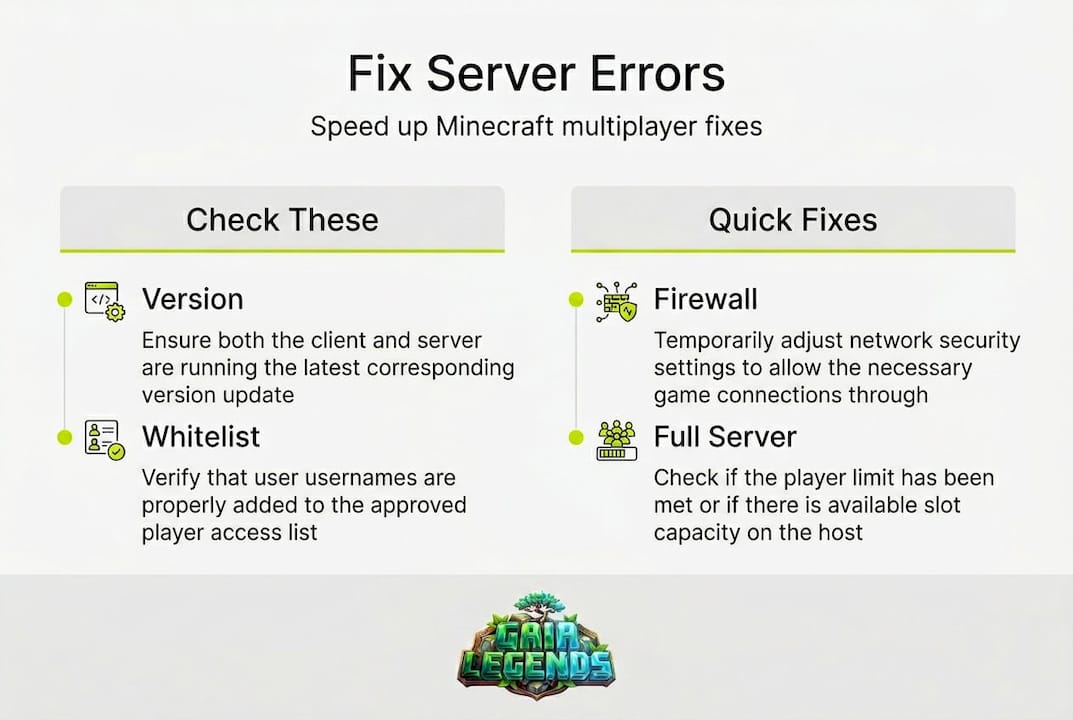
Whitelist block: Find the server's community hub, usually a Discord or website, and follow their application process. Most whitelisted servers do this to keep communities safe and tight-knit, so be patient.
Firewall issues: Check your Windows Firewall settings and make sure Java (javaw.exe) is allowed through. If you are on a school or work network, improving your connection by switching to a personal hotspot is the fastest diagnostic step.
Full server: Some servers offer premium ranks that include priority queue access. If you play on a specific server regularly, this can be worth it. Alternatively, use finding server list alternatives to discover servers with more open slots.
Authentication errors: Visit Mojang's status page at status.mojang.com. If their authentication servers are red, just wait. It usually resolves within an hour.
Pro Tip: Never share your Minecraft account password with any third-party server, website, or person claiming to be a server admin. Legitimate servers never ask for your password. Always access your account only through the official Minecraft Launcher or Microsoft login page.
"Connecting to the wrong server or sharing account details with untrusted sources puts your progress and security at risk. Stay sharp and always verify server addresses before entering them."
Helpful community resources
The Minecraft subreddit (r/Minecraft and r/admincraft) and the official Minecraft Discord are full of players who have run into the same issues. Searching your exact error message there usually surfaces a solution within seconds. Server-specific Discord servers are also invaluable because admins monitor them actively and can resolve whitelist or ban issues directly.
Expert tips for a smooth multiplayer experience
With solutions to common issues covered, you can now level up your multiplayer play with these expert tips. These are the things that separate players who constantly struggle with connection issues from those who jump in and thrive from day one.
Modded servers: get your mods right
Modded Minecraft is a massive part of the community, and joining a modded server requires extra preparation. For modded server hosting setups, the client must have the exact same mods and mod versions as the server. Even a single outdated or extra mod on your end will prevent you from connecting.
As noted in analysis of self-hosted Minecraft servers, performance varies widely, with PaperMC recommended for optimization over vanilla server software. This matters because well-optimized servers give you a much smoother experience as a player. If you are choosing between two similar servers, always prefer one that advertises PaperMC, Purpur, or another high-performance server core.
Use the modpack launcher provided by the server whenever possible. CurseForge, Modrinth, and AT Launcher all support one-click modpack installs that auto-match mod versions. This removes almost all manual error from the process.
Performance and stability tips for players
Even if the server is well-optimized, your own game client affects your multiplayer experience. These Minecraft performance mods can make a real difference, especially on Java Edition:
- Sodium: Dramatically improves frame rate on Java Edition without changing gameplay.
- Lithium: Optimizes server and client-side game logic for smoother tick processing.
- FerriteCore: Reduces RAM usage, which helps when running modpacks with hundreds of mods.
- LazyDFU: Speeds up game startup time significantly.
- Iris Shaders: Lets you run shaders without the heavy performance hit of OptiFine.
Statistic callout: Over 70% of multiplayer performance issues trace back to client-side mod conflicts or insufficient RAM allocation. Before blaming the server, try increasing your JVM RAM allocation in the Minecraft Launcher to at least 4GB for modded play.
Etiquette: being a good community member
Joining a server is easy. Being welcomed and respected there takes a bit more effort, and it pays off enormously. Read the server rules before you do anything else. Most servers post them at spawn or on a rules board you pass through on first login. Ignore them and you risk a ban on your first day.
Avoid griefing at all costs. Even on servers that advertise PvP, destroying other players' builds without consent is universally disrespected and usually bannable. Stick to designated PvP zones and respect community spaces.
Chat respect matters too. Keep language appropriate and avoid spamming. If a server has a Discord, introduce yourself there. Players who show up in Discord are almost always treated better by the community and admins alike.
Back up your data
Before joining large public servers, back up your local saves. This does not affect your server character directly, but if you are running mods and something goes wrong, your local worlds could be affected by corrupted config files. It takes thirty seconds and saves real heartache.
When choosing a Minecraft SMP, also check whether the server offers rollback features in case of griefing or data loss. The best servers run regular backups and can restore individual player inventories or builds if something goes wrong.
Our take: Why joining the right server matters more than you think
Here is something that most guides will not tell you directly: the technical steps of joining a server are actually the easy part. The real challenge, and the real reward, is landing on a server that fits you.
We have managed a 200-player SMP here at Gaia Legends, and what we have seen consistently is this: players who bounce between random servers every week rarely build anything meaningful. They get frustrated, feel like outsiders, and eventually drift away from multiplayer entirely. Players who take time to find a community that matches their playstyle and values tend to stick around for months or years. They build friendships, create incredible projects, and get far more out of the game.
Not all servers are equal, and that gap is enormous. A server with active moderation, regular events, and fair rules creates an environment where creativity and competition both thrive. A server with no oversight becomes a griefing free-for-all that drives good players away within a week. Community quality, event schedules, and admin responsiveness matter just as much as the technical specs.
Our honest advice is to invest fifteen minutes reading a server's Discord, checking their rule set, and scanning recent player reviews before committing. Use a server community guide to understand what separates a healthy server from a toxic one. Then, once you find your place, commit to it. Introduce yourself, join events, and contribute to the community. That is where the real Minecraft experience lives.
Ready to join more great servers? Explore top Minecraft guides
If you are excited to continue your multiplayer journey, here is where to get started with more server knowledge.
Knowing how to connect is just the beginning. The Minecraft multiplayer world is vast, and there are incredible servers out there catering to every playstyle, from peaceful creative builds to brutal hardcore survival and complex modded economies. Finding and thriving in those spaces takes guidance, and that is exactly what we build every day.
At Gaia Legends, we publish five detailed Minecraft server guides every single day, covering everything from server reviews and community building to performance optimization and modpack setup. Whether you are looking for the best survival servers of 2026, want to understand how SMP servers work, or need help picking the right hosting plan, we have a guide ready for you. Dive in, explore, and find your next great Minecraft home.
Frequently asked questions
What do I do if I get a "Cannot Connect to Server" error?
Check your internet connection, verify the server address is spelled correctly, and make sure your game version matches the server's requirements. As version mismatch and unstable internet are the two most common causes, start there before assuming the server itself is the problem.
Can I join Java Edition servers from Bedrock Edition?
No, Java and Bedrock servers are not cross-compatible at the protocol level, but some large network projects offer limited bridging solutions. In most cases, you need to match your edition to the server type.
How can I find trustworthy Minecraft servers to join?
Use the official server lists from the Minecraft Wiki, which includes partner networks like Hypixel, alongside community forums and reputable server directories. No single Mojang-hosted list exists for all custom servers, so diversifying your search sources is smart.
Why do some servers say they require whitelist approval?
Whitelisting restricts server access to approved players only, helping communities maintain quality and safety. You must apply through the server's website or Discord and wait for an admin to add your username before you can join. As whitelists need approval, the process can take anywhere from minutes to a few days depending on the server's activity level.
What are join codes in Minecraft Education Edition?
Minecraft Education Edition uses picture-based join codes to connect players within the same Microsoft 365 organization, supporting up to 40 players per session with the host required to stay online throughout.